New Capabilities Introduced In Clarity 16.5.0
Broadcom Clarity 16.5.0 brings blueprint export/import, undo/rollback, Sankey hierarchies, Draw Down Funding, OAuth for AI, and major reporting upgrades.
On November 9th Broadcom released Clarity 16.5.0. It came with multiple new abilities which the SPM tool never had but for which the Clarity community had been waiting for a very long time. Let us go through some of those enhancements in detail in this article.
Administrative Enhancements
Export and Import Blueprints, Views and Menus
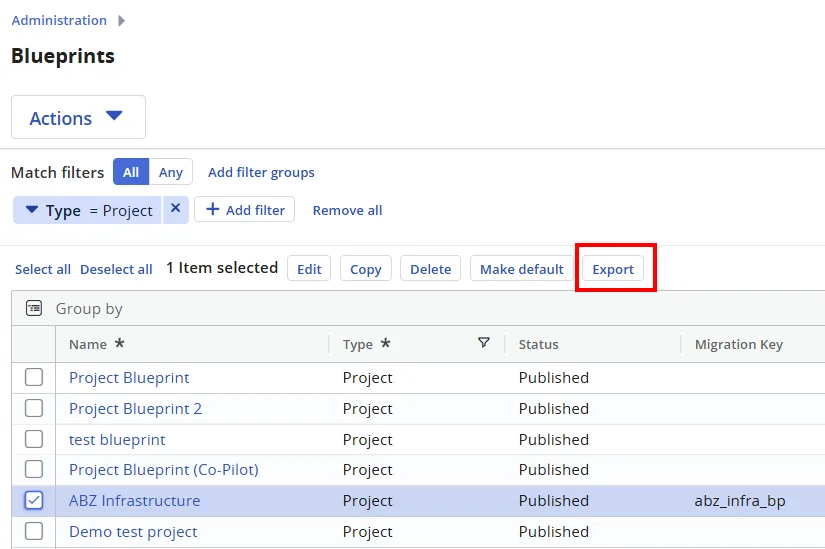
Previously, Clarity administrators could not move a blueprint or a saved view or even navigation menu items from one Clarity instance to another. With this new release, admins can now export these into a ZIP file on one Clarity instance and import that file on another instance.
For blueprints and views, the Migration Key set on them is the unique identifier which will update the corresponding target item in the destination environment if a match is found, else the import creates the item in the destination environment. In the case of navigation menu items there is no Migration Key and the whole menu gets exported while the import operation matches each menu item to the target instance's menu item by what that menu item opens.
Please note that the export and import actions against Blueprint, View and Menu type should be enabled in the Actions framework to use these capabilities. Also note that the Export button will be disabled for a particular record until a Migration Key has been filled-in.
Run Processes from Sub-object Pages and Selections
Clarity Administrators can now add the processes that belong to an object's sub-objects also such as Risks, Issues and Tasks and then place a process action on most modules of the blueprint (not limited only to the Properties page). Users can select several items in a grid and start the process for all of them from the action bar. This results in the application starting one process for each selected row and each of them appearing on the Initiated tab of the Processes page.
Decide on the Groups and Attributes applied by JIT Provisioning
Until now, an identity provider can even send an admin security group and thereby give a user even admin privileges or access to non-relevant areas of Clarity. This was possible because there was no option for a Clarity Admin to validate or control which security groups and resource attributes an identity provider can apply when users log in through SAML single sign-on.
Clarity 16.5 introduces the below two allow-lists, which are static lookups. Clarity will apply only the values on these lists and will skip everything else.
- JIT Allowed Security Groups
- JIT Allowed Updatable Resource Attributes

Rollback Record Changes
Clarity 16.5 brings with it two new features to reverse data changes, one for the common Clarity user and one for the Clarity administrator.
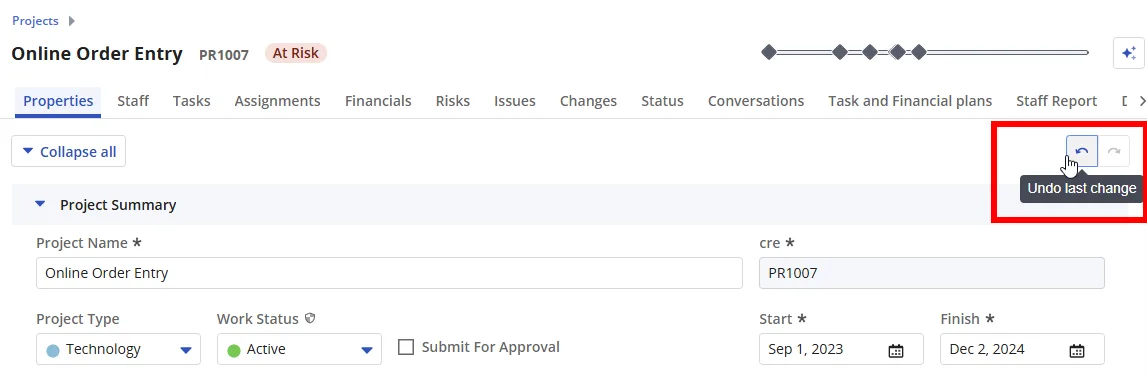
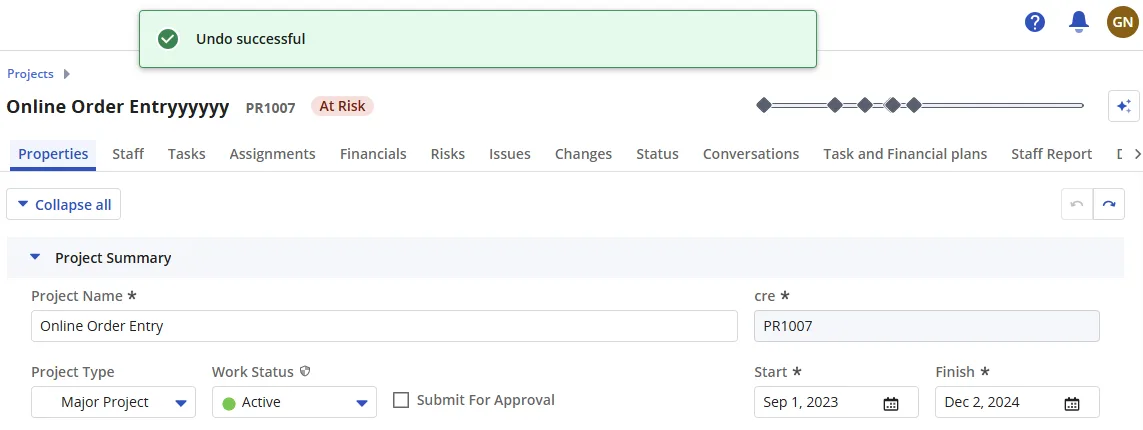
Clarity users now have the option to Undo and Redo their updates which they may have made accidentally on the properties page, details panel or on the grid, board and timeline layouts. One edit action like a paste or a bulk edit is counted as one step and so an undo can even reverse changes to multiple records.
Users can go back as far as 10 steps backward using this undo feature. A toast message will tell you if the undo/redo has been successful or not. Please note that each layout is keeping its own history of previous edits so moving to another layout/page will clear the edit history.
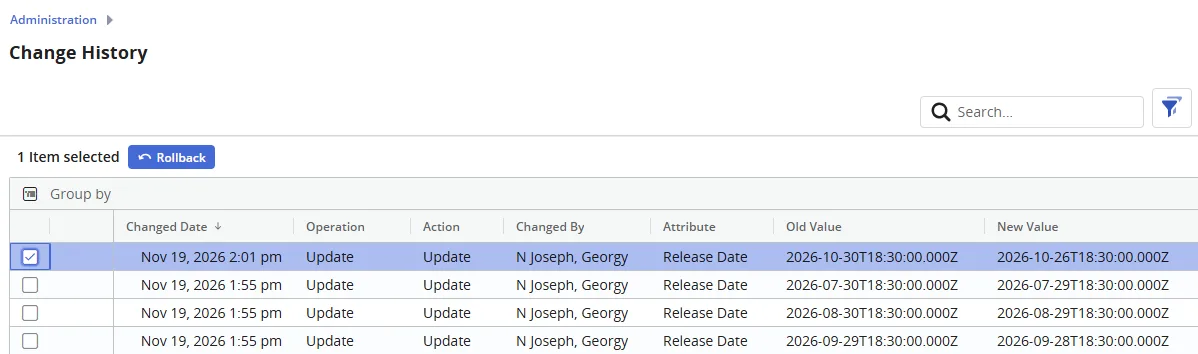
As for Clarity Admins, the new Change History page in MUX Administration lists all the updates to a record of any custom master object on which the change history is enabled from the Classic object properties page. From the same page, they will be able to roll the record back to an earlier revision.
Please note that this is a Beta feature. It covers custom master objects only, not stock objects and not sub-objects. Admins will also need the following new global rights to perform these actions.
- Administration - Change History - Navigate
- Administration - Change History - Rollback
Business Rules Enhancements
Until now, blueprint business rules could only be triggered by an update to existing records and not on creation of records. Beginning with Clarity 16.5 business rules can be configured to execute on the creation of a record, be it a direct record creation without using a template or a template driven record creation.
This is made possible with the addition of a new "Apply On" event selector section in the blueprint business rule configuration where even multiple events can be selected for the same rule. A creation event can use only the View Page, Attribute Update and Security Update rule types. It cannot use the Conditional Required Modal rule type as it is limited to updates only.
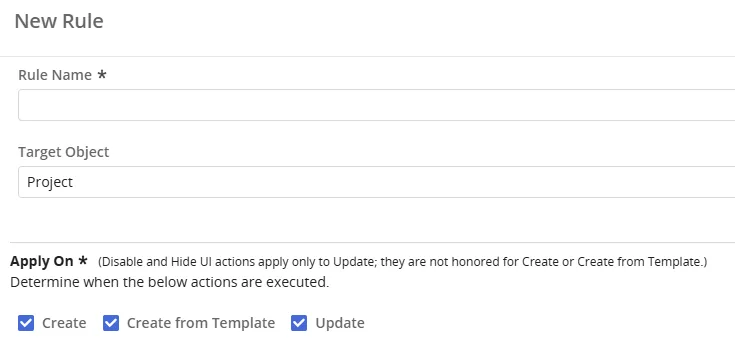
In Administration>>Notifications, addition of a similar event selector section in the notification configuration screen allows notifications to be executed when records get created.
Investment Hierarchy as a Sankey diagram
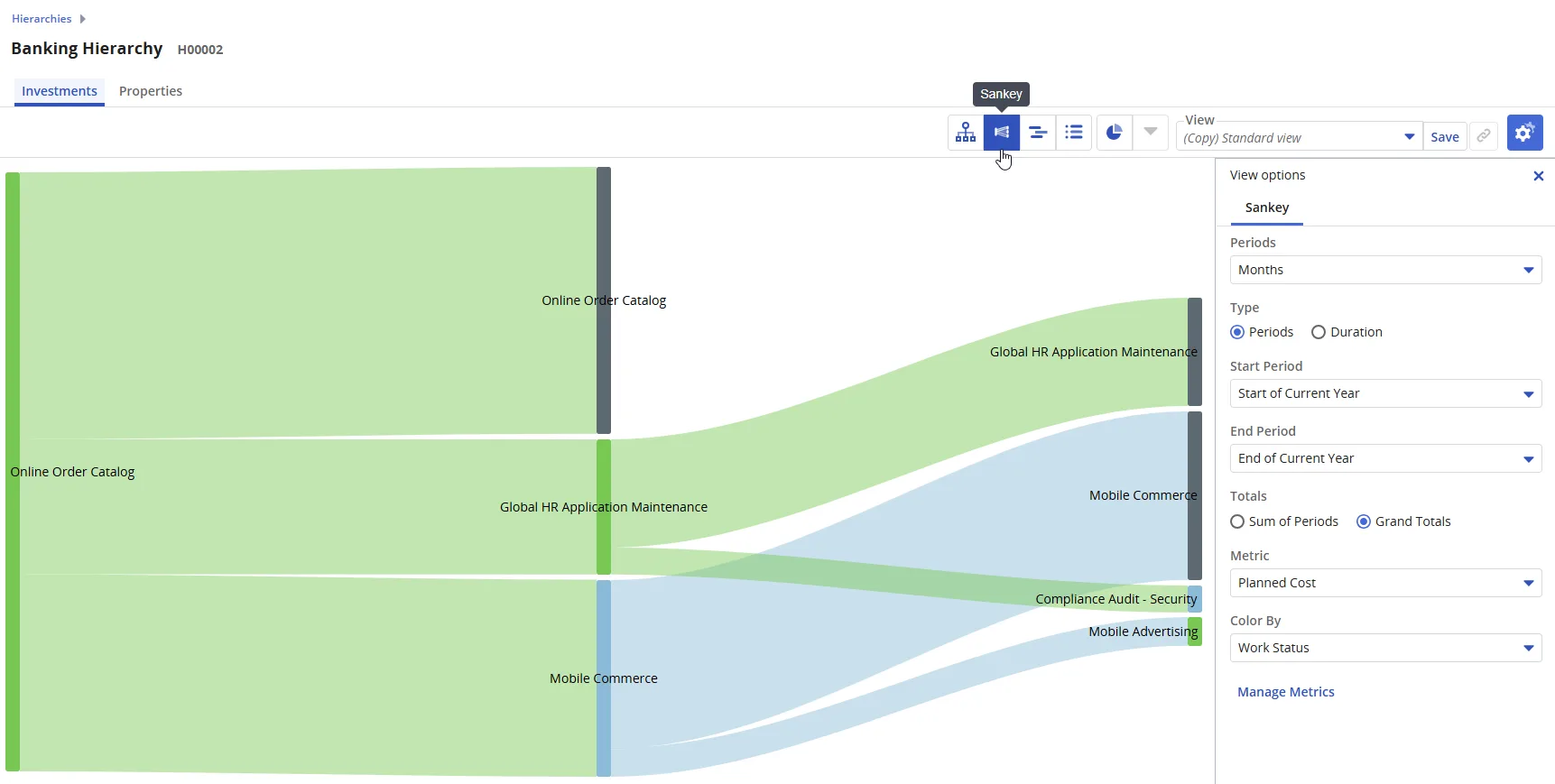
As you are aware, a Sankey diagram is a flow chart that shows how a quantity moves from one stage to another. The width of each connecting band is proportional to the size of the flow, making large transfers easy to spot immediately.
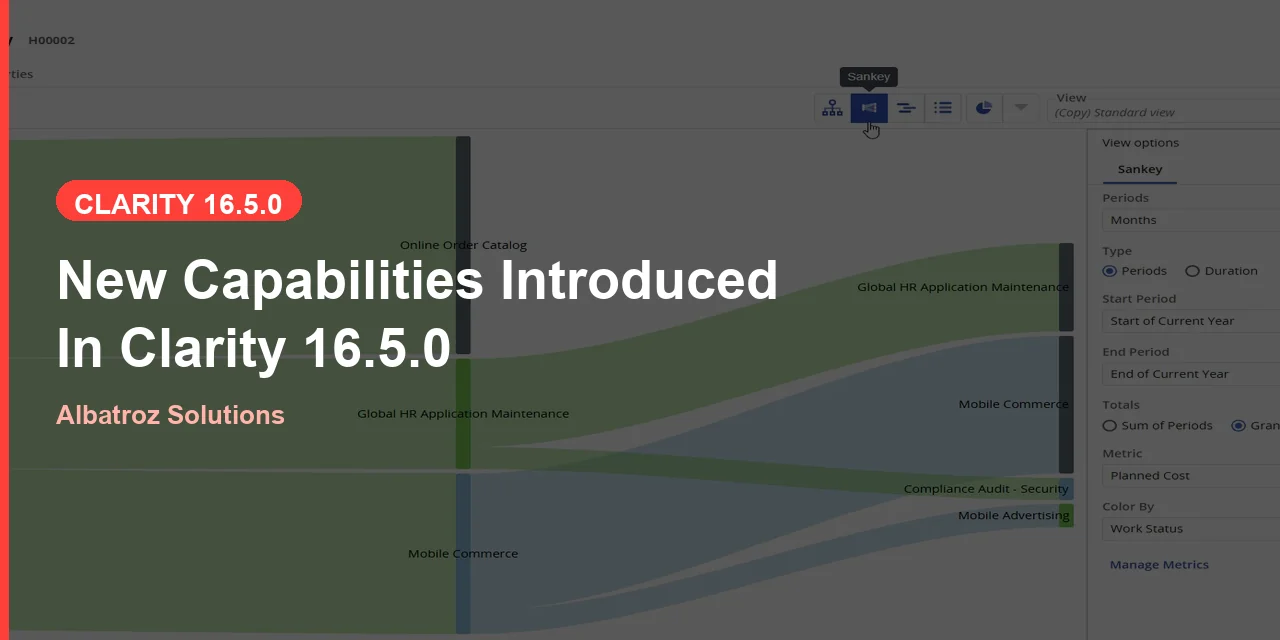
Clarity 16.5.0 introduces this new Sankey layout inside Hierarchies, sitting between the Tree and Timeline layout icons. Each branch of the Sankey diagram is sized by the metric we configure and we can also color the branches by the Color By attribute we select in View Options. This will be a great boon for a portfolio leader in reviewing a program, helping him to quickly find which investments make up most of a parent's total in an investment hierarchy.
To use this new feature, Clarity Admins need to turn on the "Sankey Diagram Layout under Hierarchies" feature toggle in the Administration workspace.
Draw Down Funding (Beta)
In many scenarios, investments get funded from another investment that owns the funds. How a request was made for funds to the funding investment and how it got approved or rejected, all of this happened outside Clarity and we had no ability to record them within the Clarity application.
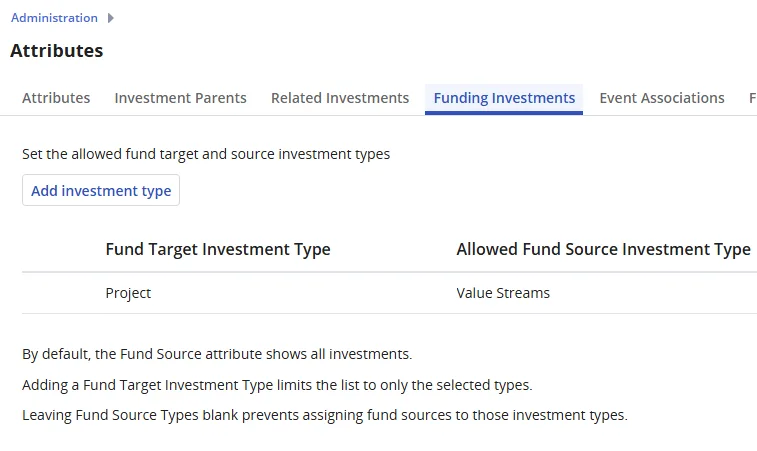
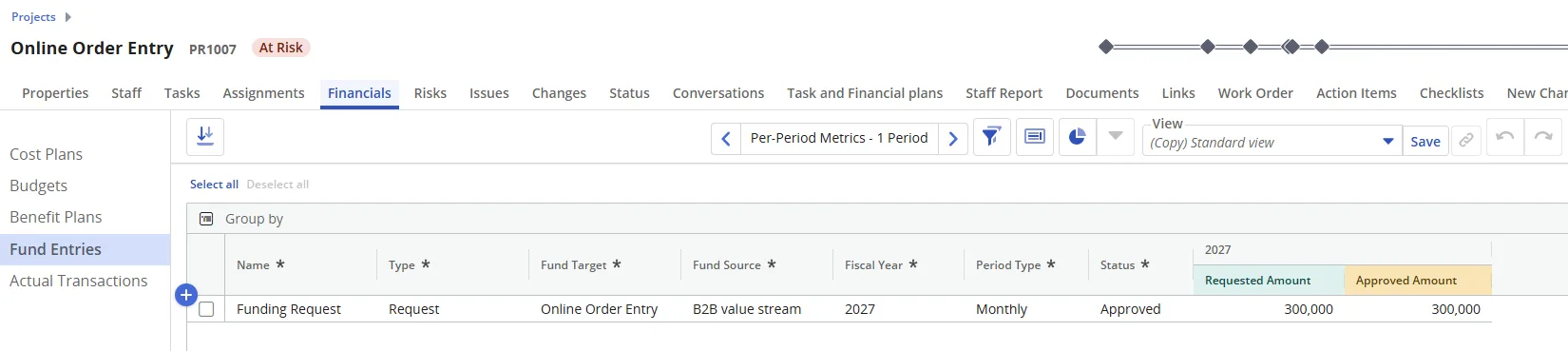
This changes from Clarity 16.5.0 as it has introduced Draw Down Funding where such requests are represented as fund entries in Clarity. On the Administration>>Attributes>>Funding Investments page, Clarity Admins can configure which investment types can fund which.
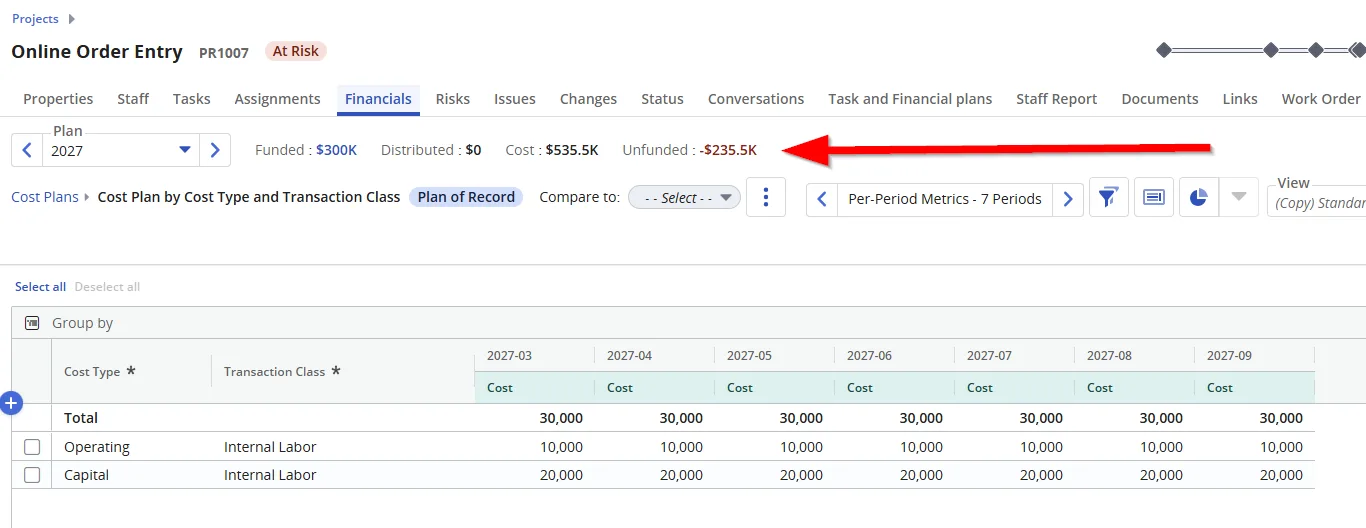
The investment manager who needs money will be creating a fund entry within his investment tagging the fund source investment record along with the amount and the fiscal year. The approver for the Fund Source can either approve the full amount or a different amount or he may reject the request altogether. These actions are correctly recorded and contribute to making a funding summary bar on the cost plan showing how much of the investment's cost is funded and how much is not. This funding summary adds up the approved fund entries and shows how much funding the investment received and how much it gave to other investments.
AI Enhancements
For AI applications to work on your Clarity data they need to connect to the Clarity MCP server first. Since this was only possible via an API key, until now, a Clarity Admin had to create an API client and generate the API key which had to be then configured on the AI application side.
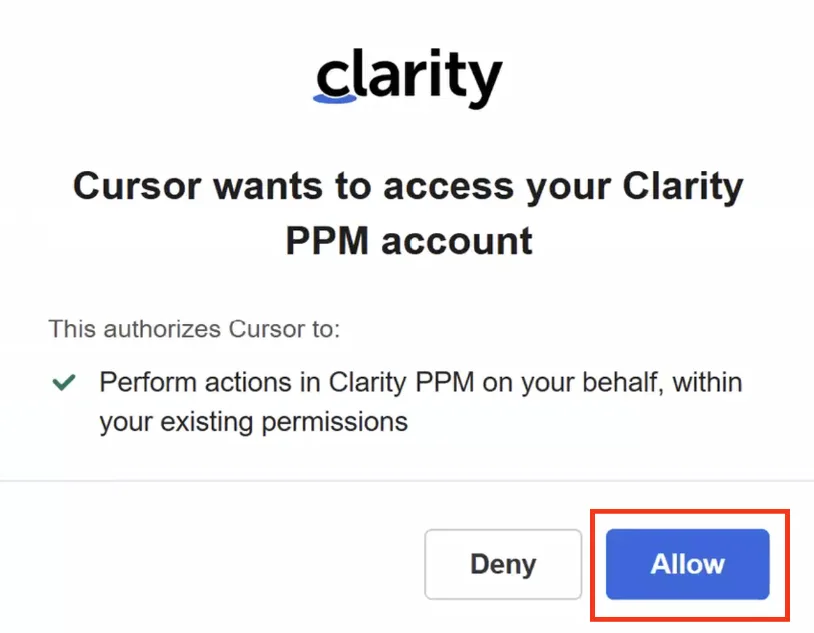
With the new Clarity 16.5 release, the same can be accomplished with OAuth without any API key. You just need to initiate the authentication from the AI application after providing the MCP server's address, login to Clarity and then choose Allow when prompted to grant the AI application access to your Clarity PPM account. Then on, the AI application works with the MCP tools on your behalf, within your existing access rights until you sign out or the session times out.
From this release, when AI applications ask which objects and attributes exist, instead of the full definition of every object or attribute, the MCP server sends short summaries. Only a request for specific attributes will return their full detail. The MCP server also ignores administration objects, private APIs and objects that are not part of the portfolio. All these changes result in getting faster MCP Server responses in Clarity 16.5 version.
Reporting Enhancements
Clarity 16.5 comes with several reporting enhancements like:
- Ability to relabel Data Provider attributes
- Using Query Attributes and Parameters in Calculated Attributes
- Ability to make Query Parameters as multi-select in Data Providers
- Added drill-down reports to Table widget
- Can add MVL attributes to an Attribute Group
- Can add symbols to conditional formatting rules
- Can sort Tables by Per-Period Metric Totals
- Ability to auto-expand Table Groups to a chosen level
- Can hide an entire column including its header and values
- Ability to schedule responsive reports for PDF and PPTX output
- Can deliver scheduled report output to an SFTP server
- PDF and PPTX exports support up to 1000 pages
- Can add reports to a blueprint as actions
Obviously, we could not include the full complete list of Clarity 16.5 enhancements here in this article. There are many more like enhancements to the tasks module by which users can bulk-assign multiple resources, ability to have an expandable tree with assignments shown in the tasks grid itself and auto-calculated task fields like WBS Type and WBS Level. On the roadmap front, with this release, users get the option to quickly navigate to the linked hierarchy of each roadmap item imported from an investment.
The list goes on. In short, Clarity 16.5 has introduced so many usability enhancements and feature additions that it would be really worthwhile planning your next version upgrade to Clarity 16.5.0. For any support in planning and executing your Clarity version upgrade or for training your Clarity users on these newly added abilities of the tool, please feel free to get in touch with our experts at Albatroz Solutions.
Author: Georgy N Joseph (Services Architect – PPM)
Contact us:
For questions about Clarity 16.5.0 upgrades or our PPM services, contact us at info@albatrozsolutions.com.